
Switching from GitHub Copilot to Cursor
Updated for Cursor 3.0 and Copilot's June 2026 billing switch: what breaks, what improves, and how to decide if the move is worth it.
 11 min read
TL;DR
- Cursor 3.0 (April 2026) adds a dedicated Agents Window for running multiple agents in parallel - cloud agents moved out of the traditional Editor
- GitHub Copilot is switching to AI Credits billing on June 1, 2026 - chat and agent tasks now consume credits, completions stay unlimited
- Cursor Teams jumped to $40/seat (was $32); Copilot plan base prices held flat
- Low difficulty - most developers are up and running within a few hours
Why Developers Are Switching
GitHub Copilot is the most widely installed AI coding assistant on the market, but Cursor keeps pulling developers away with a different design philosophy. Copilot is an extension that lives inside your editor. Cursor is the editor - a fork of VS Code that builds AI into every layer of the IDE.
The core gap is codebase awareness. Copilot completes what you're typing based on the current file and nearby context. Cursor indexes your whole repository and uses that index for suggestions, chat responses, and multi-file edits. Cursor 3.0, released April 2, 2026, widened that gap further by introducing parallel agent execution - a dedicated Agents Window where you can run multiple agents simultaneously across different repos and environments.
GitHub Copilot isn't standing still. Its April 2026 update added cloud agent sessions directly from VS Code, user-level custom agents that persist across projects, and a Debugger agent that validates bug fixes against live runtime behavior. But Cursor's multi-agent surface and deeper codebase indexing are still ahead. For a side-by-side breakdown of both tools, see our GitHub Copilot review and Cursor IDE review.
Whether the switch makes sense depends on your workflow. Multi-file refactors, deep codebase Q&A, and parallel agent tasks all favor Cursor. Single-file completions and GitHub-native workflows still favor Copilot - especially as Copilot adds its own model picker and agent capabilities. For comparison with other editors in this space, our Cursor vs. alternatives breakdown covers the wider landscape.
Feature Comparison
| Feature | GitHub Copilot | Cursor | Notes |
|---|---|---|---|
| Inline completions | Yes (Ghost Text) | Yes (Tab) | Both predict next edits |
| Chat interface | Copilot Chat sidebar | Cmd+K inline + sidebar | Cursor chat is more integrated |
| Multi-file editing | Limited (agent mode) | Composer (native) | Cursor's main advantage |
| Codebase indexing | Partial | Full repo semantic index | Cursor indexes everything |
| Parallel agents | No | Agents Window (Cursor 3.0) | Run many agents across repos/environments |
| Agent environment | GitHub Actions VM | Local, worktree, cloud, SSH | Cursor offers more execution targets |
| Design Mode | No | Yes (Agents Window) | Annotate browser UI elements for agents |
| /worktree command | No | Yes | Runs agent in isolated git worktree |
| /best-of-n command | No | Yes | Same task on multiple models, compare results |
| Security Review | No | Beta (Teams/Enterprise) | PR checks plus scheduled codebase scans |
| Cursor SDK | N/A | TypeScript SDK (April 2026) | Build agents using Cursor's runtime |
| Model selection | Claude, Codex, GPT, Gemini | Claude, GPT, Gemini, custom | Both offer multiple models |
| IDE type | VS Code extension | Standalone (VS Code fork) | Cursor replaces your editor |
| Custom rules | .github/copilot-instructions.md | .cursor/rules/ directory | Different config locations |
| Terminal integration | Copilot CLI | Built-in terminal AI | Both assist in terminal |
| Extensions | VS Code Marketplace | VS Code Marketplace | Same extensions work |
| Team features | Business/Enterprise plans | Teams plan ($40/seat) | Both have team tiers |
| Git integration | Deep GitHub integration | Standard Git support | Copilot wins for GitHub-heavy workflows |
| Debugger agent | Yes (April 2026) | No equivalent | Copilot verifies fixes against live runtime |
Migrating Your Setup
Step 1 - Install Cursor
Download Cursor and run the installer. On first launch, it detects your VS Code installation automatically.
Step 2 - Import VS Code Settings
Press Ctrl+Shift+J (Windows/Linux) or Cmd+Shift+J (macOS) to open Cursor Settings. Under General > Account, click the "VS Code Import" button. This copies over your:
- Extensions
- Keyboard shortcuts
- Editor settings (theme, font, formatting rules)
- Snippets
Around 80% of users get through this without issues. The remaining 20% may need manual fixes - especially for extensions installed on remote SSH servers, DevContainers, or VS Code Insiders configurations. Set aside 30 minutes for edge cases.
Step 3 - Set Up Project Rules
If you used .github/copilot-instructions.md for custom Copilot behavior, move those instructions to Cursor's rules system.
Create a .cursor/rules/ directory in your project root:
mkdir -p .cursor/rules
Then create rule files in MDC format:
# .cursor/rules/project.mdc
---
description: "Project coding standards"
globs: ["**/*.py"]
---

- Use type hints on all function signatures
- Follow Google docstring format
- Import sorting: stdlib, third-party, local
Cursor rules are more flexible than Copilot instructions. You can scope them to specific file patterns, create multiple rule files for different parts of the codebase, and they're version-controlled alongside your code.
Step 4 - Configure Your AI Model
Cursor lets you choose which model handles different tasks. In Settings > Models, configure:
- Tab completions: Auto mode (unlimited, uses Cursor's built-in model)
- Chat/Composer: Claude Sonnet 4.6 or GPT-5 (draws from your credit pool)
- Agents Window: Claude or GPT for autonomous and parallel tasks
Auto mode is free and unlimited. Selecting a premium model draws from your monthly credit pool. For everyday coding, most developers leave completions on Auto and pick a premium model manually for complex Composer or agent work.
Step 5 - Explore the Agents Window
Cursor 3.0 introduced a dedicated Agents Window separate from the traditional Editor. You can run both side by side. Key things to learn:
/worktreestarts an agent task in an isolated git worktree so changes don't pollute your working branch/best-of-nruns the same task across multiple models simultaneously in parallel worktrees, then lets you compare results- Design Mode (
Cmd+Shift+D) lets you annotate browser UI elements and pass them directly to the agent
Cloud agents no longer run from the traditional Editor in Cursor 3.0 - they moved to the Agents Window. If your prior workflow relied on Background Agent inside the chat panel, plan for a short adjustment period.
Workflow Differences
Inline Completions - Similar Experience
Both tools show ghost text as you type. Cursor's Tab completion predicts not just the next line but the next edit - it can suggest multi-cursor changes across the current file based on what you recently changed. The experience is similar to Copilot but with better codebase context.
Chat - Cursor Is More Integrated
Copilot Chat lives in a sidebar panel. Cursor offers both sidebar chat and Cmd+K inline chat, where you select code, type a natural language instruction, and see a diff preview before applying. The inline approach is faster for quick refactors.
Multi-File Editing - Cursor's Main Advantage
This is where the tools diverge most. Need to rename an API endpoint and update every caller, test, and type definition across the codebase? In Copilot, you'd ask Chat for guidance and apply changes file by file. In Cursor's Composer, you describe the change and it produces coordinated diffs across all affected files. You review changes in a diff view and apply or reject each file individually.
For more on Cursor's multi-file capabilities compared to other AI editors, see our Cursor vs. Windsurf comparison.
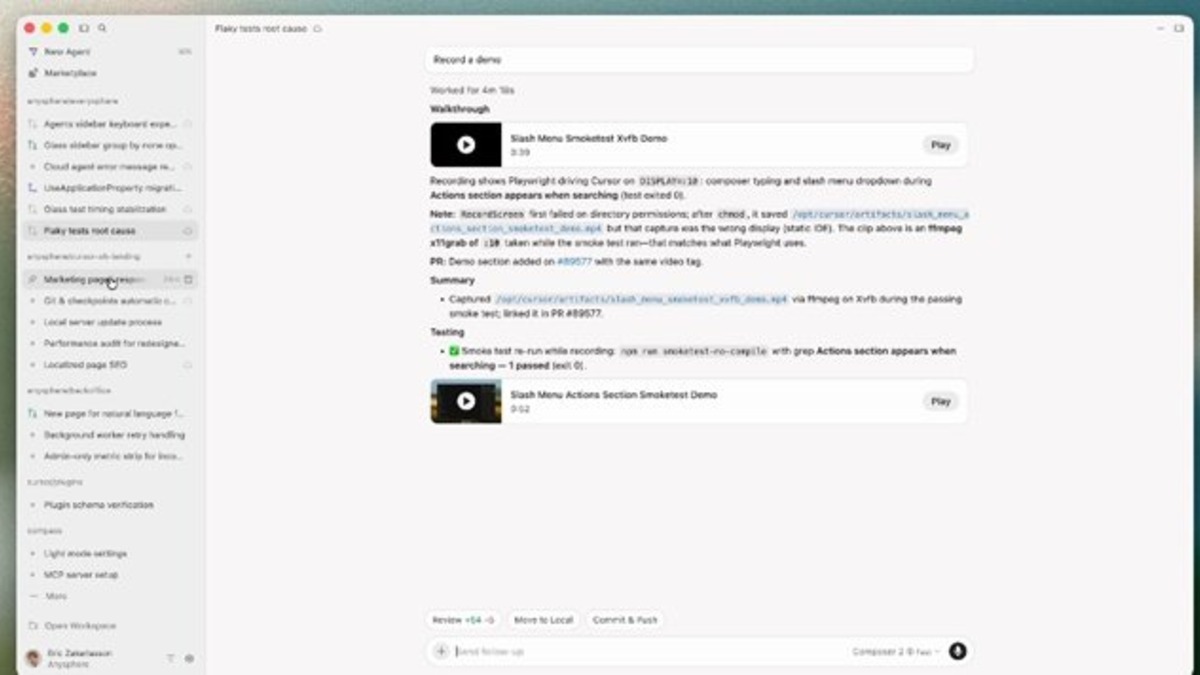 Cursor 3.0 introduced a dedicated Agents Window for running multiple agents in parallel across repos, worktrees, cloud, and remote SSH sessions.
Source: infoq.com
Cursor 3.0 introduced a dedicated Agents Window for running multiple agents in parallel across repos, worktrees, cloud, and remote SSH sessions.
Source: infoq.com
Parallel Agents - Cursor 3.0's New Feature
The Agents Window lets you run many agents at once across different repos and environments - locally, in git worktrees, in the cloud, or on remote SSH. The /best-of-n command is especially useful for decisions: it runs the same coding task across multiple models simultaneously in isolated worktrees, then presents the results side by side for comparison.
GitHub Copilot has no equivalent multi-agent surface. Each task runs sequentially from a single agent. Its April 2026 Debugger agent is a step toward more autonomous behavior, but it operates within a single sequential workflow.
Autonomous Agents - Different Models
Both tools offer autonomous agent capabilities with different approaches:
Copilot Cloud Agent runs on GitHub Actions VMs. Assign a GitHub Issue to Copilot, and it creates a PR with the implementation. It's asynchronous and integrates naturally with GitHub's review workflow. The April 2026 update lets you kick off these sessions from within VS Code or Visual Studio.
Cursor Background Agent (in the Agents Window) runs locally or in Cursor's cloud. Describe a task, and it executes while you continue coding. You can run multiple agents at once and move sessions between local and cloud environments without interrupting them.
If your workflow centers on GitHub Issues and PRs, Copilot's cloud agent integrates more naturally. If you want parallel agents across branches or multiple repos, Cursor's model is faster to iterate with.
Pricing Impact
GitHub Copilot is changing its billing model on June 1, 2026. The shift moves from "premium request" units to GitHub AI Credits: 1 credit equals $0.01 USD, and usage is metered by tokens consumed per model and per feature. Plan prices stay flat, but you get a monthly credit allotment instead of a fixed request count.
| Plan | GitHub Copilot | Cursor |
|---|---|---|
| Free | 50 premium requests/mo | Limited agents + completions |
| Individual | Pro: $10/mo - 1,000 AI Credits | Pro: $20/mo - extended limits |
| Power user | Pro+: $39/mo - 3,900 AI Credits | Pro+: $60/mo - 3x usage / Ultra: $200/mo |
| Team | Business: $19/seat - $19 AI Credits/seat | Teams: $40/seat |
| Enterprise | $39/seat - $39 AI Credits/seat | Custom pricing |
Code completions and Next Edit Suggestions on Copilot remain unlimited and don't count against credits. Copilot Chat, the CLI, the cloud agent, and third-party coding agents do consume credits. If you rely on Copilot Chat or agentic features heavily, watch your credit balance after June 1 - community reaction to the change has been skeptical, with some developers reporting that agentic tasks can drain credits notably faster than the old 300-request-per-month limit implied.
 GitHub Copilot's move to token-based AI Credits billing starting June 1, 2026 changes how costs scale with heavy Chat and agent usage.
Source: pexels.com
GitHub Copilot's move to token-based AI Credits billing starting June 1, 2026 changes how costs scale with heavy Chat and agent usage.
Source: pexels.com
Cursor costs roughly double Copilot at most tiers. The Teams plan rose from $32 to $40 per seat in early 2026. For context: if you're spending 10 or more minutes per day on multi-file refactors that Composer handles in under a minute, the price difference pays back quickly. If your work is mostly single-file completions, Copilot offers comparable quality for half the price.
Known Gotchas
Cursor is a separate application. Unlike Copilot, which runs inside VS Code, Cursor replaces your editor completely. You'll have a different app in your dock and taskbar. Some teams resist this because it complicates standardizing developer environments.
Cloud agents moved in Cursor 3.0. If your workflow used Background Agent from within Cursor's chat panel, that's gone. Cloud agents now live exclusively in the Agents Window. Plan for an adjustment if your team had established agent workflows before April 2026.
GitHub Copilot billing changes June 1, 2026. If you're comparing tools and costs, factor in the new AI Credits model. Heavy users of Copilot Chat and agentic features may see a cost increase compared to what the old 300-requests-per-month number suggested.
Extension compatibility is 99%, not 100%. Cursor forks VS Code, so nearly all extensions work. But some that depend on VS Code-specific internals - certain remote development or DevContainer extensions - may behave differently or need manual configuration.
Copilot instructions don't transfer automatically. Your
.github/copilot-instructions.mdwon't be read by Cursor. You need to manually migrate those rules to.cursor/rules/files. The format is similar, but not identical.Cursor credits can drain fast. Heavy use of Claude Opus or GPT-5 for Composer or Agents Window tasks can exhaust your monthly credit pool. Monitor your balance in Settings > Account. Auto mode completions are unlimited and don't use credits.
GitHub integration is shallower in Cursor. Copilot has native deep integration with GitHub - PR reviews, issue context, repository knowledge bases. Cursor works with Git generically. If your workflow depends heavily on GitHub-specific features, you'll feel this difference.
New Copilot sign-ups paused. As of April 20, 2026, new registrations for Copilot Pro, Pro+, and Student plans are paused. If you're assessing both tools for a new team member right now, they can't sign up for Copilot until GitHub lifts the restriction.
FAQ
Can I use GitHub Copilot inside Cursor?
Yes. Cursor is a VS Code fork, so you can install the GitHub Copilot extension from the marketplace and run both tools simultaneously.
Will my VS Code extensions work in Cursor?
Nearly all of them will. Cursor supports the VS Code extension marketplace directly. Only extensions that depend on VS Code-specific internals may have issues.
Is Cursor worth twice the price of Copilot?
If you regularly run multi-file refactors or want parallel agent workflows, yes. If your work is mostly inline completions, Copilot offers comparable quality at half the price - especially now that Copilot added its own model picker and cloud agent.
What changed with GitHub Copilot billing in June 2026?
Copilot switched from premium request units to GitHub AI Credits (1 credit = $0.01 USD). Pro gets 1,000 credits per month; Pro+ gets 3,900 credits per month. Code completions and Next Edit Suggestions stay unlimited. Chat, CLI, and agent tasks consume credits based on token usage and model choice.
Can I go back to VS Code if Cursor doesn't work out?
Yes. Cursor doesn't modify your VS Code installation. Your settings and extensions sync both ways, and you can run both apps side by side indefinitely.
Does Cursor work with non-VS Code keybindings?
Cursor supports Vim, Emacs, and Sublime keybinding profiles, just like VS Code. Import your preferred keymap from Settings > Keyboard Shortcuts.
Sources:
- Cursor 3.0 Release Notes
- Cursor Changelog (recent)
- Cursor Pricing
- GitHub Copilot Plans
- GitHub Copilot Moving to Usage-Based Billing
- Usage-Based Billing for Individuals
- GitHub Copilot April 2026 VS Update
- Changes to GitHub Copilot Individual Plans
- Cursor 3: Agent-First Interface - InfoQ
- Cursor VS Code Migration Guide
- Cursor Rules Documentation
✓ Last verified May 5, 2026

