
NVIDIA DGX Spark Setup and Usage Guide for 2026
A complete guide to setting up the NVIDIA DGX Spark - from unboxing and first boot to running LLM inference, fine-tuning models, and optimizing performance.
 11 min read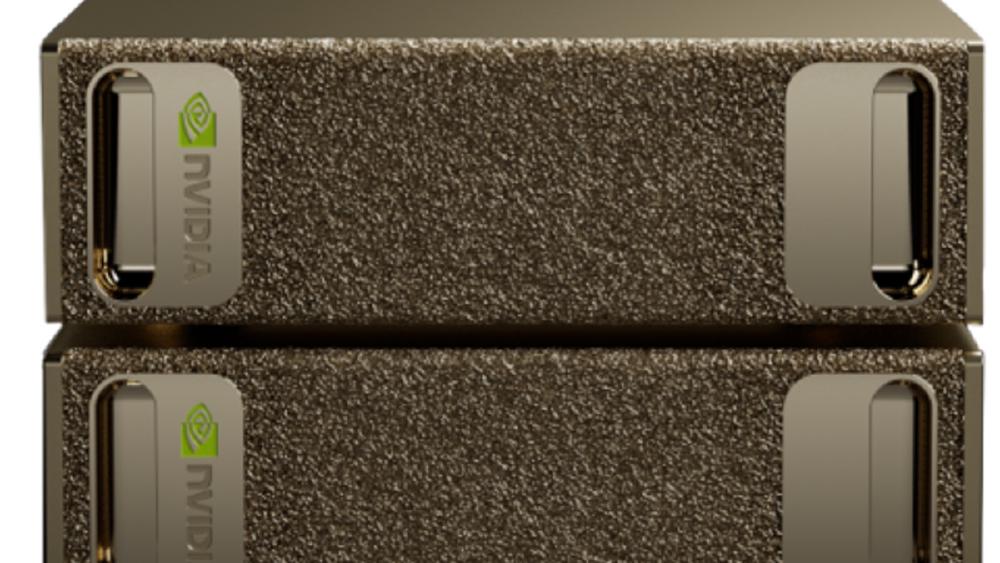
You've got a DGX Spark on your desk - a 1.2 kg box that NVIDIA says can deliver a petaflop of AI performance. Now what? This guide walks you through everything from plugging it in to running your first LLM, fine-tuning a model, and setting up a proper development environment. No assumed knowledge beyond basic command line comfort.
TL;DR
- The DGX Spark runs DGX OS (Ubuntu 24.04) with CUDA 13.0, Docker, and Ollama pre-installed - you can run your first LLM within minutes of first boot
- Its 128 GB unified memory fits models up to 200B parameters, with the sweet spot being 8-20B models where it delivers excellent performance
- Three fine-tuning paths: LLaMA Factory (easiest), NeMo AutoModel (NVIDIA's stack), and Unsloth (fastest - 2.5x speed-up)
- Watch for thermal throttling during sustained loads - keep vents clear and ambient temperature below 30C
Unboxing and Physical Setup
The box contains the Spark unit itself, a 240W USB-C power supply, and a Quick Start Guide with your device hostname and login credentials. If you bought the Founders Edition, you'll notice the all-metal chassis with gold-tinted finish and metal foam ventilation panels.
Before you plug in power, connect all peripherals first. The Spark starts immediately when power is applied - there's no power button.
What Goes Where
The rear panel has:
- 4x USB-C - one handles the 240W power delivery
- 1x HDMI 2.1a - for a monitor (optional if you're setting up headlessly)
- 1x 10GbE Ethernet - recommended for downloading large models
- 2x QSFP - for linking two Sparks together (200 Gbps aggregate)
- Wi-Fi 7 and Bluetooth 5.4 - built in
Placement Tips
This matters more than you'd expect. The Spark's thermal design is tight - 140W GPU plus CPU, SSD, and networking in a 150mm cube.
- Don't place it against a wall or inside a cabinet - leave clearance on all sides
- Keep ambient temperature below 30C (86F)
- Don't stack anything on top of it
- Clean the metal foam vents periodically with compressed air
Multiple users have reported thermal throttling and shutdowns during sustained workloads. NVIDIA has released firmware patches that help, but good airflow around the unit remains essential.
First Boot
Option 1: Local Setup (Monitor + Keyboard)
Connect a display, keyboard, and mouse. Plug in the power supply. The Spark boots directly into a setup wizard:
- Choose language and time zone
- Select keyboard layout
- Accept terms and conditions
- Create your username and password (this account gets sudo access)
- Configure analytics preferences
- Connect to Wi-Fi (or skip if Ethernet is plugged in)
- System downloads and installs the full software image
- Reboot - setup complete
Important: Don't shut down or unplug during step 7. The software download can't be resumed if interrupted, and you'll need a factory reset.
Option 2: Headless Setup (Network)
Without a monitor attached, the Spark creates a Wi-Fi hotspot on first boot. From another computer:
- Connect to the hotspot using the SSID and password printed on the Quick Start Guide
- Open a browser and navigate to the setup page
- Follow the same wizard steps as above
- Once Wi-Fi is configured, the hotspot disables and the Spark joins your network
After setup, find your Spark on the network at <hostname>.local via mDNS.
The Software Stack
DGX OS 7.4.0 is Ubuntu 24.04 with NVIDIA's full driver and toolkit stack pre-configured:
| Component | Version |
|---|---|
| DGX OS | 7.4.0 (Ubuntu 24.04, kernel 6.17) |
| GPU Driver | 580.126.09 |
| CUDA Toolkit | 13.0.2 |
| Docker | Pre-installed with GPU passthrough |
| Ollama | Pre-installed |
| DGX Dashboard | Built-in (monitoring + JupyterLab) |
| NVIDIA Sync | Remote connectivity tool |
Everything is ready to go. No driver installation, no CUDA setup, no Docker configuration. This alone saves hours compared to setting up a GPU workstation from scratch.
Keeping It Updated
Open the DGX Dashboard (locally at http://localhost:11000 or via the Ubuntu app grid) and check for updates. Only the account created during first boot has permission to install updates. NVIDIA releases major OS updates twice per year (February and August), with security patches between them.
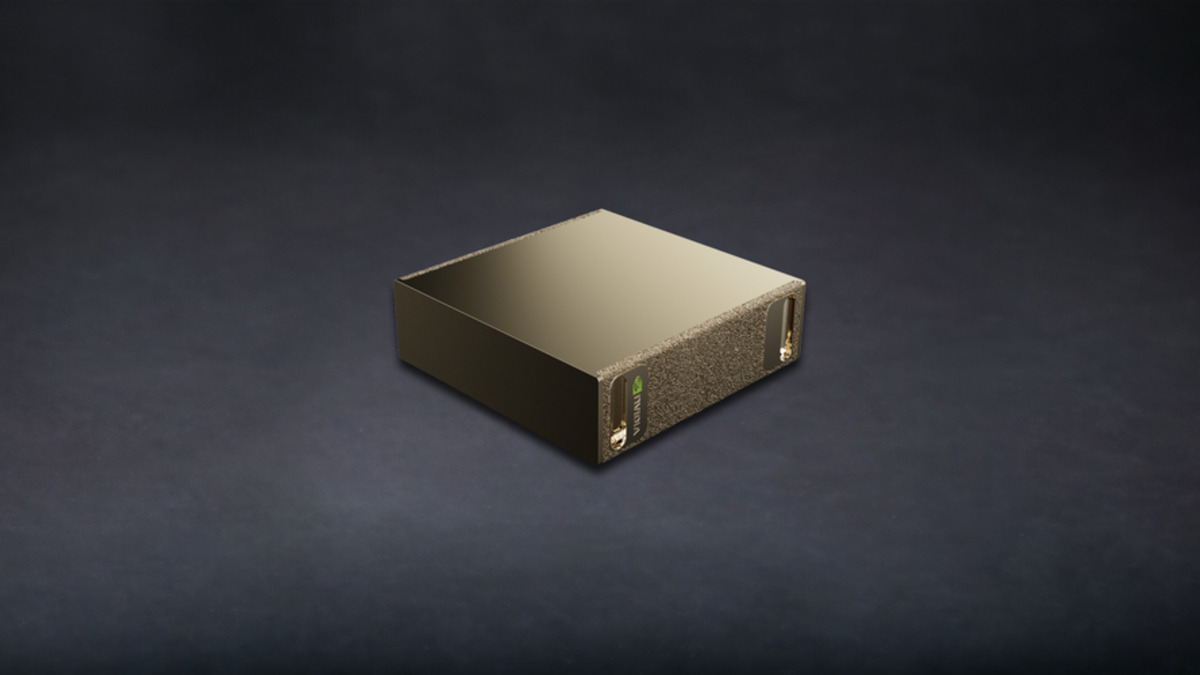 The DGX Spark measures just 150mm x 150mm x 50.5mm and weighs 1.2 kg - roughly the size of a Mac Mini.
Running Your First LLM
The fastest path from power-on to chatting with a local LLM is Ollama, which comes pre-installed.
Quick Start with Ollama
# Pull a model
ollama pull llama3.1:8b

# Start chatting
ollama run llama3.1:8b
That's it. Llama 3.1 8B runs at roughly 20 tokens per second for single requests and scales to 368 tokens per second at batch 32 - more than fast enough for interactive use.
What Models Fit?
The 128 GB unified memory is generous. Here's what runs and how well:
| Model | Parameters | Quantization | Performance |
|---|---|---|---|
| Llama 3.1 8B | 8B | FP8 | Excellent - primary sweet spot |
| Gemma 3 12B | 12B | - | Works well |
| DeepSeek-R1 14B | 14B | FP8 | Good performance |
| Qwen 3 32B | 32B | - | Solid for development |
| Llama 3.1 70B | 70B | FP8 | Loads but slow decode (2.7 tps) |
| GPT-OSS 120B | 120B | - | Prototyping only |
NVIDIA says models up to 200B parameters can load. In practice, anything above 30B gets noticeably slow for interactive use due to the 273 GB/s memory bandwidth being shared between CPU and GPU. The 8-20B range is where this hardware shines.
For a broader view of which models perform best on consumer and prosumer hardware, check our home GPU LLM leaderboard.
Adding a Chat UI
If you prefer a ChatGPT-style interface over the terminal, Open WebUI works well:
docker run -d -p 8080:8080 --gpus=all \
  -v open-webui:/app/backend/data \
  -v open-webui-ollama:/root/.ollama \
  --name open-webui ghcr.io/open-webui/open-webui:ollama
Open http://localhost:8080 in your browser. You now have a self-hosted chat interface that connects to your local Ollama instance.
Production-Style Serving with TensorRT-LLM
For an OpenAI-compatible API server with optimized inference, TensorRT-LLM is the way to go:
export HF_TOKEN=<your-huggingface-token>
export DOCKER_IMAGE="nvcr.io/nvidia/tensorrt-llm/release:1.2.0rc6"
export MODEL_HANDLE="nvidia/Llama-3.1-8B-Instruct-FP4"

docker run --name trtllm --rm -it --gpus all --ipc host --network host \
  -e HF_TOKEN=$HF_TOKEN -e MODEL_HANDLE=$MODEL_HANDLE \
  -v $HOME/.cache/huggingface/:/root/.cache/huggingface/ \
  $DOCKER_IMAGE bash -c \
  'hf download $MODEL_HANDLE && trtllm-serve "$MODEL_HANDLE" --max_batch_size 64 --port 8355'
Test it:
curl -s http://localhost:8355/v1/chat/completions \
  -H "Content-Type: application/json" \
  -d '{"model": "nvidia/Llama-3.1-8B-Instruct-FP4",
       "messages": [{"role": "user", "content": "Hello!"}],
       "max_tokens": 64}'
This gives you a drop-in replacement for the OpenAI API running entirely on your desk. Any tool that supports the OpenAI API format - AI coding assistants, agent frameworks, custom apps - can point at this endpoint.
Fine-Tuning Models
The Spark supports LoRA, QLoRA, and full fine-tuning. Three frameworks are well-tested:
LLaMA Factory (Easiest)
This is the recommended starting point if you haven't fine-tuned before:
# Set up environment
python3 -m venv factoryEnv && source ./factoryEnv/bin/activate
pip3 install torch torchvision torchaudio \
  --index-url https://download.pytorch.org/whl/cu130

# Clone and install
git clone --depth 1 https://github.com/hiyouga/LLaMA-Factory.git
cd LLaMA-Factory && pip install -e ".[metrics]"

# Fine-tune with LoRA (uses a YAML config)
llamafactory-cli train examples/train_lora/qwen3_lora_sft.yaml

# Test your fine-tuned model
llamafactory-cli chat examples/inference/qwen3_lora_sft.yaml

# Export for deployment
llamafactory-cli export examples/merge_lora/qwen3_lora_sft.yaml
LLaMA Factory handles dataset preparation, training, evaluation, and export through YAML configs. It supports Llama, Mistral, Qwen, and other architectures.
Unsloth (Fastest)
Unsloth delivers 2.5x speed-ups over standard Hugging Face transformers on the Spark. Numbers speak for themselves:
| Model | Method | Unsloth (tps) | Standard (tps) |
|---|---|---|---|
| Llama 3.1 8B | LoRA | 53,658 | ~21,000 |
| Llama 3.3 70B | QLoRA | 5,079 | ~2,000 |
If throughput matters and you're comfortable with the Unsloth API, it's the fastest option available.
NeMo AutoModel (NVIDIA's Own)
For those who want to stay within NVIDIA's ecosystem:
# Pull PyTorch container
docker pull nvcr.io/nvidia/pytorch:25.11-py3
docker run --gpus all --ulimit memlock=-1 -it \
  --ulimit stack=67108864 --entrypoint /usr/bin/bash \
  --rm nvcr.io/nvidia/pytorch:25.11-py3

# Inside the container
git clone https://github.com/NVIDIA-NeMo/Automodel.git && cd Automodel
pip3 install uv && uv venv --system-site-packages && uv sync --inexact --frozen --all-extras

# LoRA fine-tuning
uv run --frozen --no-sync examples/llm_finetune/finetune.py \
  -c examples/llm_finetune/llama3_2/llama3_2_1b_squad_peft.yaml \
  --model.pretrained_model_name_or_path meta-llama/Llama-3.1-8B \
  --packed_sequence.packed_sequence_size 1024 \
  --step_scheduler.max_steps 20
Troubleshooting Fine-Tuning
| Problem | Fix |
|---|---|
| CUDA out of memory | Reduce per_device_train_batch_size or increase gradient_accumulation_steps |
| OOM despite enough total memory | Clear caches: sudo sh -c 'sync; echo 3 > /proc/sys/vm/drop_caches' |
| Gated model access denied | Regenerate HuggingFace token and request model access on the model page |
| System shuts down during training | Thermal issue - improve ventilation, reduce batch size, check firmware version |
 The DGX Spark's pre-configured software stack means you can go from unboxing to running LLM inference in minutes.
Setting Up Your Development Environment
DGX Dashboard
The built-in dashboard at http://localhost:11000 provides real-time monitoring of CPU, GPU, memory, and storage. It also hosts JupyterLab - each user gets a dedicated port, and the dashboard creates virtual environments automatically when you point JupyterLab at a working directory.
VS Code (Remote)
The recommended setup is running VS Code on your laptop and connecting to the Spark remotely:
- Install NVIDIA Sync on your client machine (macOS, Windows, or Linux)
- Add your Spark device: provide hostname, username, and password
- NVIDIA Sync auto-produces SSH keys and configures access
- Click the Sync icon to launch VS Code connected to the Spark
This gives you your familiar editor with the Spark's full CUDA stack as the execution backend. You can also use standard VS Code Remote-SSH if you prefer manual configuration.
SSH Access
After initial setup, SSH into your Spark:
ssh <username>@<hostname>.local
For forwarding web apps (like DGX Dashboard or JupyterLab) to your laptop:
ssh -L 11000:localhost:11000 <username>@<hostname>.local
For remote access outside your local network, the official playbooks include a Tailscale VPN setup guide.
NVIDIA NIM Deployment
NIM (NVIDIA Inference Microservices) packages models as optimized Docker containers with built-in serving. DGX Spark requires the -dgx-spark variant containers.
# Authenticate with NGC
export NGC_API_KEY="<your-key>"
echo "$NGC_API_KEY" | docker login nvcr.io --username '$oauthtoken' --password-stdin

# Set up cache and run
export LOCAL_NIM_CACHE=~/.cache/nim
mkdir -p "$LOCAL_NIM_CACHE" && chmod -R a+w "$LOCAL_NIM_CACHE"

docker run -it --rm --gpus all --shm-size=16GB \
  -e NGC_API_KEY=$NGC_API_KEY \
  -v "$LOCAL_NIM_CACHE:/opt/nim/.cache" \
  -p 8000:8000 \
  nvcr.io/nim/meta/llama-3.1-8b-instruct-dgx-spark:latest
NIM is free for development and testing through the NVIDIA Developer Program (included with your Spark purchase). Production deployment requires an NVIDIA AI Enterprise license - you can get a 90-day trial with a business email.
To understand which LLM fits your use case, our guide to choosing an LLM breaks down the decision by task type, budget, and privacy requirements.
Performance Tips
Memory Management
The Spark's 128 GB is shared between CPU and GPU. The nvidia-smi tool will report "Memory-Usage: Not Supported" - this is normal for unified memory architecture. Use standard system monitoring (free -h, htop, or the DGX Dashboard) to track memory.
Before large workloads, clear system caches:
sudo sh -c 'sync; echo 3 > /proc/sys/vm/drop_caches'
Quantization
Use NVFP4 or MXFP4 quantization for the best throughput. Llama 3.1 8B at NVFP4 delivers 10,257 tps prefill versus 7,991 tps at FP8 - a 28% improvement with minimal quality loss for most tasks.
Batch Size
The Spark scales well with batching. Single-request performance is modest, but batch-32 decode throughput on Llama 3.1 8B jumps from 20.5 tps to 368 tps. If you're serving multiple users or processing batch jobs, configure your serving framework for concurrent requests.
Speculative Decoding
EAGLE3 speculative decoding delivers up to 2x end-to-end throughput improvement. If your serving framework supports it (SGLang does natively), enable it.
Compiler Flags
If building custom code, target the Spark's ARM architecture:
-march=armv9.2-a -mcpu=gb10 # Requires LLVM 21+ or GCC 15+
Linking Two Sparks
The QSFP ports let you link two units at 200 Gbps aggregate bandwidth, enabling tensor parallelism across the pair. NVIDIA demonstrated running Qwen3-235B (a 235 billion parameter mixture-of-experts model) across two Sparks with TRT-LLM using --tp_size 2.
This is particularly useful for running models that don't fit in a single Spark's 128 GB - you effectively get 256 GB of unified memory. The official playbooks repository has step-by-step instructions for both the physical connection and the NCCL configuration.
Common Issues and Fixes
| Issue | Solution |
|---|---|
| Thermal throttling / shutdowns | Improve airflow, update firmware, reduce batch size, keep ambient below 30C |
nvidia-smi shows "Not Supported" | Normal for UMA - use system memory monitoring instead |
| HDMI display won't wake from sleep | Known bug - use SSH access or reconnect the cable |
| TRT-LLM weight loading OOM | Set export TRT_LLM_DISABLE_LOAD_WEIGHTS_IN_PARALLEL=1 |
| System clock sync errors | Run sudo timedatectl set-ntp true |
| Fan running slow despite high temps | Firmware update required - check release notes |
Resources
- Official Playbooks Portal: build.nvidia.com/spark - 37 step-by-step guides for inference, fine-tuning, development, and applications
- User Guide: docs.nvidia.com/dgx/dgx-spark
- GitHub Playbooks: github.com/NVIDIA/dgx-spark-playbooks
- Developer Forums: forums.developer.nvidia.com - DGX Spark/GB10 category with active NVIDIA engineer participation
- NGC Container Catalog: catalog.ngc.nvidia.com - pre-optimized containers for PyTorch, TensorFlow, TRT-LLM, and more
Sources
- DGX Spark User Guide - NVIDIA
- DGX Spark Release Notes
- DGX Spark Performance - NVIDIA Technical Blog
- NVIDIA DGX Spark In-Depth Review - LMSYS
- DGX Spark Developer's Guide - The New Stack
- LLaMA Factory Playbook - NVIDIA
- Fine-tune with NeMo - NVIDIA
- NIM on Spark Playbook - NVIDIA
- VS Code Setup Playbook - NVIDIA
- Open WebUI with Ollama Playbook - NVIDIA
- Unsloth DGX Spark Documentation
- Ollama Blog - NVIDIA Spark
- DGX Spark and Mac Mini - Sebastian Raschka
- DGX Spark Thermal Throttling - NVIDIA Forums
