
How to Use AI for Photo Editing - A Beginner's Guide
A practical beginner's guide to AI photo editing - background removal, object erasure, and generative fill - using free tools anyone can start with today.
 9 min read
You don't need Photoshop. You don't need a design degree. You don't even need an especially good camera. AI photo editing has reached the point where a few taps on your phone - or a few typed words in a browser - can do things that once took professional retouchers an hour.
TL;DR
- Covers background removal, object erasure, generative fill, and mood changes
- Best free starting points: Google Photos, Adobe Firefly (25 free credits/month), ChatGPT
- No design skills needed - takes about 10 minutes to try your first AI edit
The change happened quietly. AI tools started appearing inside apps people already used - Google Photos, Canva, even ChatGPT - without requiring any extra setup. Now the hard part isn't finding the tools; it's knowing which one fits which task. That's what this guide covers.
What AI Can Actually Do With Your Photos
The phrase "AI photo editing" covers a lot of different things. Before picking a tool, it helps to know which problem you're actually trying to solve.
Background removal cuts out the subject from whatever is behind it. One click, and the background is gone. This used to take twenty minutes with Photoshop's selection tools.
Object removal goes the other direction - you keep the background and erase something that shouldn't be there: a photobomber, a power line, a trash can in the corner. The AI fills in what was behind the object, guessing from the surrounding pixels.
Generative fill is the most flexible of the three. You select an area of the photo and type a description, and the AI produces new content to place there. "Replace the cloudy sky with a sunset." "Add a wooden fence along the path." "Change her jacket to dark green." The results vary, but on simple substitutions they're often good enough to use.
Portrait enhancement covers skin smoothing, eye sharpening, and lighting adjustments. Most tools do this automatically - one button, subtle corrections, done.
Mood and style changes are newer. Some tools now let you shift a photo from daytime to evening, add snow, or apply a film grain effect using plain English. This is where the results get more unpredictable, but also where the creative possibilities open up.
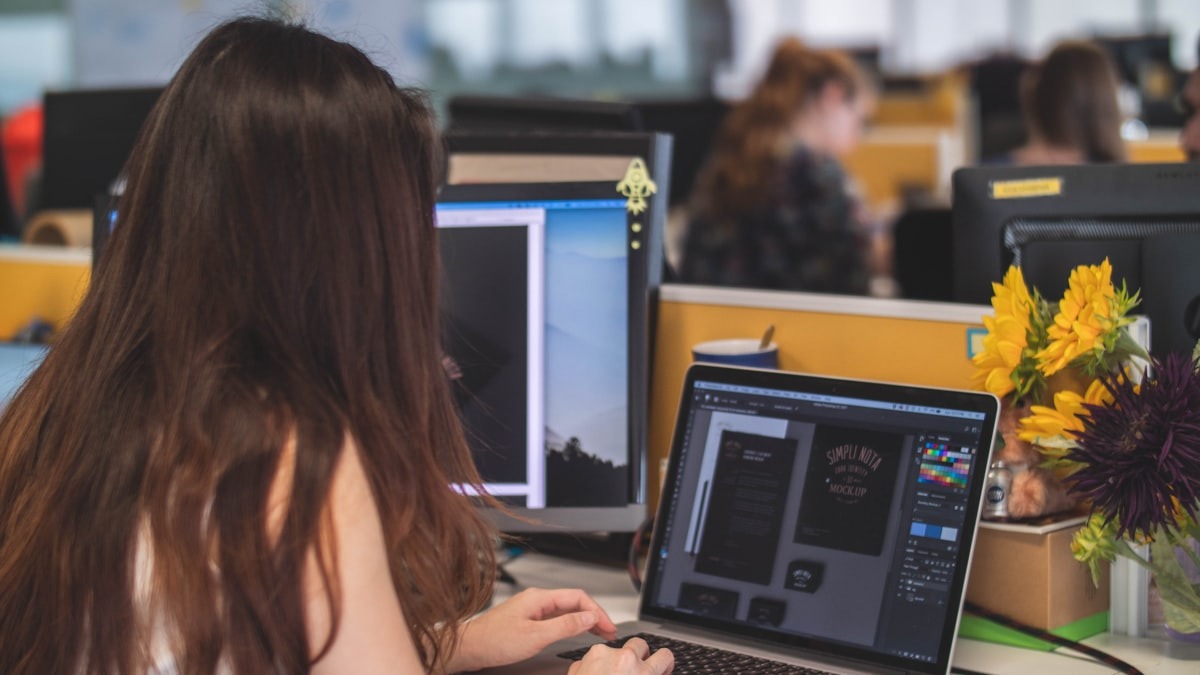 AI photo editing works in any browser or on your phone - no professional software required.
Source: unsplash.com
AI photo editing works in any browser or on your phone - no professional software required.
Source: unsplash.com
The Four Best Free Tools
These four cover different use cases. You don't need all of them - pick based on where you spend your time.
Google Photos
If you have an Android phone or a Google account, you already have this. It's the fastest path to useful AI edits with no setup at all.
The key tools: Magic Eraser removes distractions with a tap - it works best on smaller objects against simple backgrounds. Best Take (available on Pixel phones) scans a burst of photos and replaces faces so everyone is looking at the camera and smiling. Magic Editor lets you reposition subjects, change backgrounds, and adjust sky conditions. And AI Reimagine, added in early 2026, accepts a text prompt like "make it look like evening" and applies a scene transformation to the whole image.
Everything in Google Photos is free for Google account holders. No credits, no subscriptions.
Canva
Canva works best if you're creating something - a social media post, a presentation slide, a flyer - and need the edited photo to fit a specific design. The free tier includes basic editing, but AI-powered features like Magic Edit and Background Remover require Canva Pro, which costs around $120 per year.
Magic Edit works by asking you to brush over the area you want to change, then describe what you want in its place. Background Remover is one click. Both are truly fast for social content, though if you're only editing photos (not designing with them), one of the other tools in this list will serve you better without the subscription.
Adobe Firefly
Adobe's Firefly gives 25 free generative credits per month with a free Adobe account at firefly.adobe.com. Those 25 credits won't last through a major editing project, but they're more than enough to test whether it suits your needs - and for occasional use, it's a solid free option.
The editing tools here are the most precise of any free option. Generative Fill lets you paint over an area and describe what you want. Generative Remove erases objects and fills intelligently. Generative Expand extends the canvas beyond the photo's original edges. Remove Background is one click with good edge detection.
One important note: Adobe's Firefly model is trained on licensed content, so anything you create is safe to use commercially - that matters if you're editing photos for business use. As of April 2026, Adobe also added Precision Flow (create variations using a slider to shift mood or lighting) and AI Markup (sketch directly on the image to show the AI what to change).
ChatGPT
ChatGPT's approach to photo editing is different from the others. You're not clicking buttons - you're having a conversation. Upload a photo, describe what you want changed, and the model generates a new version.
The image generation is powered by GPT-Image-2, which handles editing with a reasoning step before generating - it interprets what you actually want before touching the image. This makes it better at maintaining facial consistency and understanding complex instructions than earlier versions.
ChatGPT's free plan includes limited image operations per day. Paid (Plus) users get much higher limits. The best results come from clear, specific instructions and editing one element at a time rather than asking for multiple changes in a single message.
Three Tasks, Step by Step
Remove a Background
Best tool: Adobe Firefly (free) or Canva Pro.
In Firefly: upload your image, click Remove Background in the left toolbar. Done. Download the PNG with the transparent background.
In Canva: upload the image to a design, click it to select it, then go to Edit photo > BG Remover. It processes in a few seconds.
This works best when the subject is clearly separated from the background - a person standing in front of a wall, for example. Complex hair, transparent objects, and very similar subject/background colors will give you rougher edges.
Erase an Unwanted Object
Best tool: Google Photos (mobile) or Adobe Firefly.
In Google Photos: open the photo, tap Edit > Tools > Magic Eraser. Either tap the distraction directly or circle it with your finger. Tap Erase. The app fills the area automatically.
In Firefly: use Generative Remove. Select the area with the brush tool, click Generate without adding any text prompt, and Firefly fills the gap based on the surrounding context.
For both tools: smaller objects on consistent backgrounds (grass, sand, sky) erase cleanly. Larger, complex objects leave messier results.
Change the Mood or Setting
Best tool: ChatGPT or Adobe Firefly (Precision Flow).
In ChatGPT: upload your photo, then type something specific. "Change the background to a foggy forest." "Make the lighting look like it's golden hour." "Add a light dusting of snow on the ground." One instruction at a time gives better results than stacking multiple changes.
In Firefly's Precision Flow: upload an image, type a mood prompt, and use the slider to explore variations from one end of the interpretation to the other. Useful for testing how far you want to push the effect.
 AI editing works best when you start with a clean, well-composed original photo.
Source: unsplash.com
AI editing works best when you start with a clean, well-composed original photo.
Source: unsplash.com
Four Tips That Actually Help
Write specifically. "Add a red umbrella in the left background" works far better than "improve the photo." AI tools respond to specificity the same way a human assistant would.
Save your original first. Every tool here adjusts a copy, but it's still good practice to keep the unedited file before you start experimenting.
Edit one thing at a time. In ChatGPT especially, multi-step edits compound errors. Change the background, review, then change the lighting in a second message.
Start with the closest tool. If you're on your phone and want a quick fix, Google Photos is already there. If you're building something in Canva, stay in Canva. Using the right tool for your context beats using the "best" tool in isolation.
What AI Still Gets Wrong
AI photo editing has real limits, and knowing them saves frustration. Fine hair and fur in backgrounds are routinely messy after removal. Tools have improved, but complex organic edges still sometimes look cut-out.
Repeating patterns trip up object removal. Removing a bolt from a metal grate, for example, leaves a patch that doesn't match the surrounding pattern.
Consistent faces across edits remain tricky. If you ask ChatGPT to make multiple changes to a portrait, the face can shift subtly between generations.
Large object removal rarely works cleanly. If you're trying to remove a car taking up 40% of the frame, no free tool will reconstruct the scene convincingly behind it.
For anything in these categories, you'll get better results using traditional editing software - or accepting that the AI version is a starting point rather than a finished product.
For a comparison of paid and free AI image editors with side-by-side results, see our best AI image editors roundup. And if you want to go further and create photos from scratch rather than editing existing ones, the AI image generation guide covers how those tools work for beginners.
FAQ
Do I need to pay for AI photo editing?
Not to start. Google Photos is free. Adobe Firefly gives 25 free credits per month. ChatGPT's free plan includes limited image edits. Canva's most powerful AI features require the Pro plan at around $120 per year.
Can AI editing tools tell you're using AI?
Sometimes. Well-done AI edits are hard to detect, but subtle tells exist - slightly unnatural textures, inconsistent lighting at object boundaries. For social media or personal use, this rarely matters. For commercial photography, clients may have specific requirements about disclosure.
Which tool is best for phone editing?
Google Photos is the easiest starting point if you have Android or a Google account. It's already installed, requires no credits, and the core tools (Magic Eraser, Magic Editor) cover most common fixes without leaving the app.
Can I use AI-edited photos commercially?
It depends on the tool. Adobe Firefly is trained on licensed content and is explicitly cleared for commercial use. ChatGPT's terms permit commercial use of created images. Check each platform's terms before using AI edits in paid work.
Sources:
- How to Use AI to Edit Photos - Imagen AI
- Best AI Photo Editor April 2026 - BuildMVPFast
- Adobe Firefly Generative Fill - Adobe Help
- New image editing features in Adobe Firefly - Adobe Blog
- Google Photos AI editing features - Google Blog
- Canva Magic Edit - Canva Help
- ChatGPT Images in OpenAI Help Center
- Adobe Firefly Pricing 2026 - ToolColumn
- Best AI Photo Editors 2026 - StarryAI
✓ Last verified May 5, 2026

