
How to Use AI for Meeting Notes and Action Items
A beginner's guide to using AI tools like Fathom, Otter.ai, Zoom AI, and Google Meet's Gemini to automatically capture meeting notes and follow-up tasks.
 8 min read
If you've ever left a meeting and spent the next 20 minutes trying to reconstruct what was decided, you're not alone. Taking notes while actively participating is truly hard. You end up half-listening, half-typing, and doing neither well.
AI meeting tools solve this by handling the note-taking completely - so you can focus on the actual conversation. After the call, you get a transcript, a summary, and a list of who agreed to do what. Usually, it's ready within a minute of hanging up.
TL;DR
- Most video conferencing platforms (Zoom, Google Meet, Microsoft Teams) now include built-in AI notes at no extra cost for paid subscribers
- Dedicated tools like Fathom (free) and Otter.ai (free tier) work across all platforms and offer more customization
- AI meeting notes work best when you speak clearly, name action items explicitly, and review the summary before sharing it
- Always notify participants before recording - consent isn't optional
This guide covers everything you need to start using AI for meeting notes, whether you're in back-to-back Zooms or occasional Google Meet calls with clients.
What AI Meeting Tools Actually Do
Before picking a tool, it helps to know what's happening behind the scenes.
AI meeting assistants do three things: they transcribe audio in real time, they analyze the transcript for key moments, and they create a structured summary. The transcription turns speech to text. The analysis identifies topics, decisions, and tasks. The summary packages it into something a person can read in under a minute.
Action items get detected by recognizing phrases like "I'll handle that," "can you follow up by Friday," or "let's set a deadline for..." - these patterns flag ownership and timing. Better tools also link each action item to the person who said it, so the follow-up email practically writes itself.
For a full breakdown of the tools available in 2026, our best AI meeting assistants roundup has hands-on rankings across use cases.
 AI meeting tools let everyone in the room focus on the conversation instead of the notepad.
Source: unsplash.com
AI meeting tools let everyone in the room focus on the conversation instead of the notepad.
Source: unsplash.com
Built-In AI: What Your Video App Already Does
Before adding another tool to your stack, check what you already have access to.
Zoom AI Companion
Zoom AI Companion is included at no extra cost on most paid Zoom Workplace plans. It records the meeting, generates a summary, and delivers it to all participants via email and Team Chat after the call ends.
The "Catch Me Up" feature is especially useful: if you join late, you can ask Zoom AI what's been discussed so far without interrupting anyone. Smart Recordings add chapter markers and highlights to cloud recordings, so anyone who needs to review 45 minutes of footage can skip straight to the relevant section.
To enable it: go to your Zoom account settings, find AI Companion, and turn on Meeting Summary. The host controls whether it's active for each meeting.
Google Meet - Gemini Notes
Google Meet's Gemini integration is available on Business Standard, Business Plus, Enterprise Standard, Enterprise Plus, and Gemini Education Premium plans. It offers real-time transcription in 8+ languages and auto-produces structured notes in a Google Doc after the meeting.
One striking update from Google Cloud Next 2026: the "Take notes for me" feature now works for in-person meetings too. You trigger it from the Meet mobile app or a laptop browser, and Gemini listens, transcribes, and saves notes to Google Docs.
The notes include a "Next Steps" section that Gemini builds automatically from the conversation. Multilingual meetings aren't supported yet, but translation into 70+ languages is available for captions.
To enable it: click "Activities" in the bottom-right of Google Meet during a call, then select "Take notes for me."
Microsoft Teams - Copilot Recap
Teams Copilot produces meeting summaries, recaps, and action items after any recorded or transcribed meeting. You access them from the Recap tab in your Teams calendar after the call.
The 2026 release added Custom AI Summaries - you can choose between a Speaker Summary (who said what), Executive Report (decisions and next steps only), or create your own template. There's also an Audio Recap option that narrates the key points aloud.
The catch: Teams Copilot requires either a Teams Premium license or a Microsoft 365 Copilot subscription, which adds $30/user/month on top of existing M365 plans. Business promotional pricing was running $18-21/user/month through mid-2026.
Dedicated AI Notetakers
These tools work across Zoom, Google Meet, Teams, and other platforms. They're worth adding if your built-in option is limited or you want more control.
Fathom - Best Free Option
Fathom joins your meetings as a visible participant ("Fathom Notetaker") and creates a summary within about 30 seconds after the call ends. The free plan includes unlimited meetings, unlimited transcription, basic summaries, and cloud storage.
The one significant free-tier limit: advanced AI summaries are capped at 5 per month. Past that, you get basic transcripts. For most people who have 5-10 important meetings a month, the free tier is genuinely sufficient.
Premium ($19/month as of March 2026) adds custom prompt templates, Zapier integration, advanced analytics, and priority support. CRM sync with HubSpot and Salesforce works on both tiers.
Fathom currently supports 28 languages and is rated highest in its category on G2.
Otter.ai - Most Platform Support
Otter.ai works with Zoom, Google Meet, Teams, Webex, and in-person audio recorded through its phone app. Free users get 300 minutes of transcription per month and basic summaries.
The OtterPilot feature joins your meetings automatically and takes live notes that your whole team can view and annotate in real time - before the meeting even ends. Anyone with access to the Otter workspace can add comments, highlight sections, or assign action items from the live transcript.
Pro starts at $8.33/month (annual), Business at $20/user/month. It's one of the more affordable options for teams.
Fireflies.ai - Best for Sales Teams
Fireflies connects to your calendar and joins meetings automatically. It supports over 100 languages and is especially strong for teams managing a high volume of external calls - it can search across your entire meeting archive by keyword, speaker, or topic.
The standout feature for sales teams: it syncs summaries and action items directly to Salesforce, HubSpot, Pipedrive, and other CRMs. No manual data entry after calls.
Free tier includes limited AI summaries. Pro runs $10/month (annual).
For a comparison of free plans across these tools, see our best free AI meeting notetakers guide.
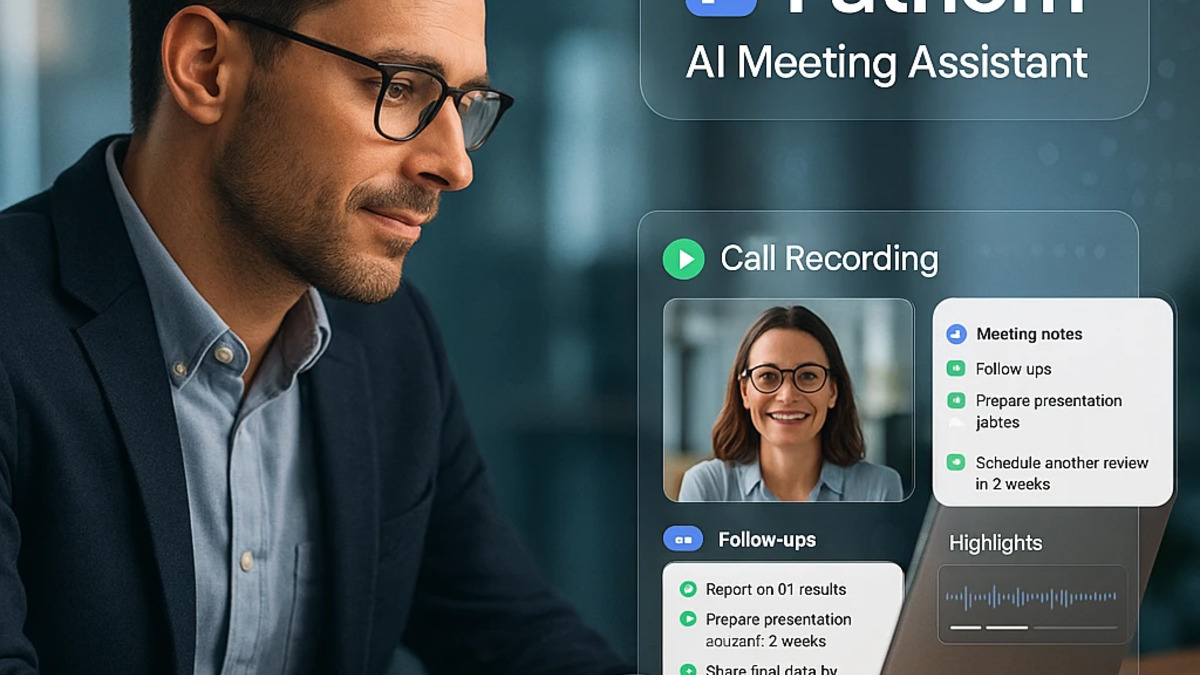 Fathom generates a structured summary with follow-up tasks within 30 seconds of a meeting ending.
Source: screenapp.io
Fathom generates a structured summary with follow-up tasks within 30 seconds of a meeting ending.
Source: screenapp.io
How to Get Better Results from Your AI Notes
The AI can only work with what it hears. These habits make a noticeable difference in note quality.
Name action items explicitly
Instead of "we'll figure out the timeline," say "Sarah will share the updated project timeline by Thursday." The AI picks up on explicit ownership and deadlines far better than vague intentions. If you're leading the meeting, you can even pause after a decision and restate it clearly for the transcript.
Introduce speakers at the start
Most tools identify speakers by voice pattern over time, but they're more accurate when participants say their name early. A simple "Hi everyone, I'm Priya" in the first two minutes helps the AI attribute notes correctly, especially in larger calls.
Use structured language for decisions
"We've decided to..." and "The action here is..." are phrases the AI recognizes as significant. Speaking more formally when a decision is made - even for a few seconds - gives the AI clean signal. You can go back to normal conversation immediately after.
Review before sending
AI meeting summaries are accurate most of the time, but not all the time. Names get confused, technical terms get transcribed wrong, and occasionally the AI flags something as an action item that isn't one. Spend two minutes scanning the summary before forwarding it to the team. Catch the obvious errors before they cause confusion.
AI picks up on explicit ownership and deadlines far better than vague intentions. Say "Sarah will handle this by Thursday," not "we'll sort it out."
Privacy and Consent - The Non-Negotiable Part
Recording a meeting without telling participants is illegal in many places and a serious breach of trust in all of them. Before you turn on AI notes:
- Tell everyone at the start of the call. A simple "I'm using Fathom to take notes today - is that okay?" takes 10 seconds and covers you.
- Check your platform's recording consent settings. Zoom, Google Meet, and Teams all have options to notify participants automatically when recording starts.
- Be careful with sensitive topics. Legal discussions, HR matters, salary negotiations - consider whether you want a full transcript of these conversations stored in a third-party service.
- Review your tool's data policy. Enterprise plans from Zoom, Google, and Microsoft generally have stronger privacy guarantees than free third-party tools. Fathom and Otter both publish their data handling policies publicly.
For most regular business meetings, consent is a quick checkbox. But skip it, and you create real risk - for yourself and for your organization.
Where to Start
If you have a paid Zoom, Google Workspace, or Microsoft 365 plan, start there. You already have AI meeting notes; you just need to turn them on. Spend one week using the built-in feature, see if the summaries are good enough for your needs, and only then consider a dedicated tool.
If you're on a free Zoom plan or want something more consistent across platforms, Fathom's free tier is the lowest-friction place to start. No credit card, unlimited meetings, and a 30-second summary turnaround.
The setup takes about 5 minutes. By your third meeting with AI notes, you'll wonder how you managed without them.
Sources:
- Using Meeting Summary with AI Companion - Zoom Support
- AI Note Taking in Google Meet with Gemini - Google Workspace
- Google Cloud Next 2026: Meet AI Notes for In-Person Meetings
- Intelligent Recap for Teams Meetings - Microsoft Learn
- Fathom Pricing 2026 - Alfred Blog
- Fathom AI Review 2026 - ToolVetting
- Best AI Meeting Assistant 2026 - Meetily Blog
- The 10 Best AI Meeting Assistants in 2026 - Zapier
✓ Last verified June 4, 2026

