
How to Use AI to Summarize Long Documents and PDFs
A step-by-step guide to uploading PDFs into ChatGPT, Claude, and Gemini, writing prompts that get useful summaries, and verifying results - no technical background needed.
 9 min read
Most of us have a stack of documents we've been putting off. The 40-page vendor contract. The 80-slide investor deck. The research paper your doctor handed you that might as well be in another language. Reading everything carefully takes hours. Understanding it takes longer.
AI changes this. You can upload most documents directly into ChatGPT, Claude, or Google Gemini and ask for a plain-English summary in under a minute. No special technical knowledge required.
TL;DR
- Upload documents to ChatGPT, Claude, or Gemini by clicking the attachment icon and choosing your file
- Write specific prompts - not just "summarize this" - to get far more useful results
- Always double-check key numbers, dates, and legal language against the original document
- Free tools work fine for personal files; for confidential business documents, check your provider's privacy policy first
- Takes about 5 minutes to try on any document you already have
What AI Actually Does with Your Document
When you upload a PDF, the AI reads the text inside it - the same way it reads anything you type into the chat. It then uses its understanding of language, structure, and meaning to write a summary based on your instructions.
For most everyday documents, this works well. Where it struggles: scanned PDFs (where text is actually an image, not readable characters), very dense technical material, and documents that run very long relative to the tool's processing limits.
The right mindset going in: AI summarization is a starting point, not the final word. It's excellent for quick comprehension and orientation. For anything with real stakes - a contract you're about to sign, a medical report affecting treatment decisions - read the source too.
Which Tool Should You Use
Three tools cover most people's needs. A fourth, NotebookLM, is worth knowing for research-heavy work:
| Tool | File size limit | Page limit | Best for |
|---|---|---|---|
| ChatGPT | 512 MB per file | No fixed page cap | General documents, multiple formats |
| Claude | 30 MB per file | ~100 pages (full analysis) | Contracts, clause extraction, nuanced analysis |
| Gemini | 100 MB per file | 1,000 pages | Large documents, charts, tables inside PDFs |
| NotebookLM | 100 MB per source | ~750,000 words | Multiple documents, research synthesis |
All four have free tiers. For heavy use or larger files, paid plans remove most limits - ChatGPT Plus is $20/month, Claude Pro and Gemini Advanced are each $20/month.
For detailed benchmarks on how these tools perform on real PDFs, see our best AI PDF tools guide.
Step-by-Step: Your First Document Summary
Step 1: Check your file before uploading
Two quick checks before you upload anything.
Is the PDF text-based or scanned? Open it and try to highlight a sentence with your mouse. If the text highlights, it's readable by AI. If nothing selects - the page looks like a photo of text - it's a scanned image. You'll need to convert it first using a free OCR (Optical Character Recognition) tool: Adobe Acrobat Online, SmallPDF, and ILovePDF all offer this for free.
Is the file under the size limit? Most documents are fine, but if you're on a free plan, ChatGPT recommends files under 25 MB for reliable results, and Claude's free plan caps files at 30 MB each. If your PDF is larger, try compressing it with SmallPDF's PDF compressor.
Step 2: Upload your file
On ChatGPT (chat.openai.com):
- Start a new chat
- Click the paperclip icon next to the message box
- Choose "Upload from computer" and select your file
- Wait for the upload indicator to confirm the file is attached
- Type your prompt and press Enter
Free-plan users are limited to 3 file uploads per day. If you hit the limit, wait 24 hours or use Claude or Gemini instead.
On Claude (claude.ai):
- Open a new conversation
- Click the "+" button in the message input area
- Select "Add files" and choose your document
- Type your prompt and press Enter
Claude supports drag-and-drop directly into the chat window. Files must be under 30 MB, and PDFs over 100 pages get text-only analysis without reading embedded charts or images.
On Gemini (gemini.google.com):
- Type your question in the text box
- Click the attachment icon (paperclip)
- Select "Upload files" and choose your PDF
- Click Send
Gemini handles up to 100 MB and 1,000 pages, and it can read charts and tables embedded in PDFs - useful for financial reports and annual reviews.
Step 3: Write a prompt that gets you what you need
"Summarize this" works. But you'll get far more useful results with a specific request. Compare:
Vague: "Summarize this document."
Better: "Summarize the key points of this report in 5 bullet points for someone with no background in finance."
Even better: "What are my obligations under this contract? List them with any deadlines, and flag anything unusual I should ask a lawyer about."
The more you say about what you need and who you are, the better the output. Telling the AI you're a non-expert in the subject truly helps - it adjusts its language accordingly.
For a broader introduction to writing effective AI prompts, our prompt engineering basics guide covers the fundamentals.
Prompts That Work for Different Document Types
Contracts and Legal Agreements
Legal language is dense, and AI is good at translating it. Useful prompts:
- "Summarize this contract's key terms in plain language: parties involved, duration, payment, and how either side can exit."
- "Are there any unusual restrictions or obligations? Flag anything I should ask a lawyer about."
- "What happens if either party breaks this agreement?"
- "Quote the exact language from the [termination / payment / liability] clause."
AI can give you a fast orientation - but for contracts involving real money or legal risk, have a lawyer review before signing. Our guide on using AI for legal documents goes deeper on this.
Research Papers and Academic Work
Academic papers are written for specialists. AI makes them accessible:
- "Summarize the main findings in 3-4 sentences for a non-expert."
- "Explain the methodology in plain language."
- "What does this paper conclude about [specific topic], and what evidence does it use?"
- "What limitations do the authors acknowledge?"
NotebookLM is worth trying here specifically. You can upload multiple papers and ask questions across all of them at once - useful if you're doing a literature review or comparing study results.
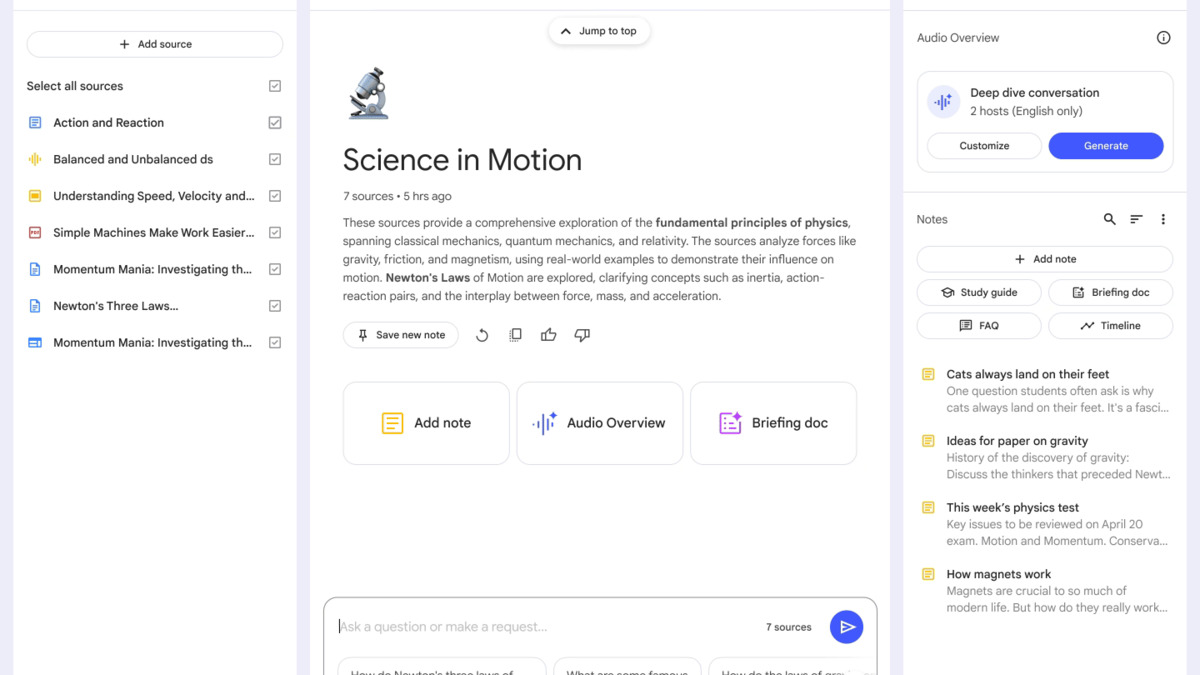 NotebookLM lets you upload multiple documents and ask questions across all of them at once - especially useful for research and studying.
Source: blog.google
NotebookLM lets you upload multiple documents and ask questions across all of them at once - especially useful for research and studying.
Source: blog.google
Medical Reports and Records
Medical documents have their own vocabulary. AI can decode it:
- "Translate this medical report into plain English. What are the main findings?"
- "What does [specific term from the report] mean in simple language?"
- "Based on this report, what are the top 3 questions I should ask my doctor?"
AI cannot diagnose conditions or replace a doctor's judgment. Use it to understand terminology and prepare questions - not to make health decisions.
Financial Documents and Insurance Policies
Numbers get buried in dense financial prose. AI finds them:
- "Summarize the key financial metrics from this annual report - revenue, profit, and year-over-year changes."
- "What does my insurance policy actually cover? What are the main exclusions?"
- "List every fee mentioned in this document with the corresponding amounts."
 AI tools like Gemini can read charts and tables embedded in PDFs - not just the text. Useful for annual reports and financial statements.
Source: unsplash.com
AI tools like Gemini can read charts and tables embedded in PDFs - not just the text. Useful for annual reports and financial statements.
Source: unsplash.com
Handling Very Long Documents
Most everyday documents fit within any AI tool's limits. Very long reports, legal filings, or academic theses occasionally need a different approach.
Claude can process documents up to roughly 200,000 tokens in a single conversation. Gemini handles up to 1,000 pages. NotebookLM supports up to 1 million tokens per source - roughly 750,000 words - making it the right choice for unusually long material.
If your document hits a limit, try these approaches:
- Summarize in sections. Ask about pages 1-30 first, then 31-60. Finish with "Now give me an overall summary based on what we've covered."
- Target specific sections. Instead of "summarize everything," try: "What does this document say about the cancellation policy?" AI retrieves relevant passages rather than processing everything at once.
- Compress first. For PDFs, SmallPDF's compressor often reduces file size substantially without affecting readability.
For more on how context windows and token limits work under the hood, see what is an AI context window.
What Can Go Wrong
AI Sometimes Gets Details Wrong
AI summarization is accurate most of the time - but not always. It can misstate a number, misread a date, or incorrectly represent a clause. This is known as hallucination, and it happens across all models.
The practical rule: verify any specific claim that actually matters. For legal documents, ask the AI to quote directly - "Quote the exact termination clause from this contract." This lets you check the quote against the source text and catch any errors before they cause problems.
Scanned PDFs Need Special Handling
If your document was created by scanning paper pages, it contains no embedded text - just images of text. Most AI tools either reject it or return a very inaccurate result.
The fix is simple: run the PDF through a free OCR tool first. Adobe Acrobat Online, SmallPDF, and ILovePDF all convert scanned PDFs to text-searchable files in seconds. Upload the converted version.
Privacy: What You Shouldn't Upload
When you send a document to a cloud AI service, that content travels to the provider's servers. This matters for:
- Confidential business information
- Client data or documents covered by a NDA
- Medical records (HIPAA-sensitive material)
- Financial information you wouldn't share publicly
A useful frame: if you wouldn't email the document to someone you've never met, think before uploading it to a free AI service. Most paid plans include stronger data privacy guarantees and opt-outs from training data use. For the most sensitive material, Adobe Acrobat's AI assistant processes documents within Adobe's own environment rather than sending data to a general AI model.
Always verify any number, date, or legal obligation against the original document. AI gets the big picture right most of the time. The fine print is where mistakes happen.
A Simple Verification Habit
After you get a summary, spend two minutes on a basic check:
- Skim the original document for key figures, names, and dates
- Confirm the AI got these right
- For legal or financial documents, re-read any clause the AI highlights as important
This takes far less time than reading the whole document from scratch - and keeps you confident that what you're acting on is accurate.
Getting Started Today
Pick any document you've been putting off and try this:
- Open Claude at claude.ai (free account, no credit card)
- Drag your PDF into the chat window
- Type: "Summarize the most important points in this document in 5 bullets, written for someone who isn't an expert in this field."
That's it. You'll have a working summary in under a minute. From there, ask follow-up questions - "What does it say about [specific topic]?" - to drill into the parts that matter most.
Sources:
- Upload files to Claude - Anthropic Support
- Add files to Gemini - Google Support
- AI file upload limits compared - OneFile App
- What is NotebookLM - DigitalOcean
- Adobe Acrobat AI summary generator - Adobe
- How to upload and summarize PDFs with ChatGPT - Tenorshare
✓ Last verified May 26, 2026

